Dynamics 365 Audit manipulation Part II: Pandas, Python, and Jupyter Notebook
- Published
- Author
- Danny Rodrigues Alves
- Reviewed by
- Lloyd Sebag
- Type
- Chronicle
- Comments
- 1
Dynamics 365 Audit manipulation:
Goal
In the part I, we've understood how the audit works and the way it's stored inside a Dynamics 365 SQL database. This second part has only one goal: recreate the audit table that we can see in a record form!
To reach that goal, we will do some Python code and rely on the Pandas library. Therefore, this article is a great example how Microsoft Dataverse data can be manipulated with Python.
For sake of simplicity, only one record will be in the AuditTable rows.
Use case
Microsoft support team can give you the SQL AuditTable rows even for an online environment.
This is a real use case that I've faced on a project: an automated process was modifying two variables on all contacts, even if it wasn't supposed to touch those variables. So we need to revert those changes. But on top of that, some users have also changed those variables, in an intended way. Those changes must be kept!
Luckily, the two fields have been audited since the beginning of the project. So we have the audit data, we just need to get our hands on it! And that's a tricky part, because the project is cloud-based, so we don't have access to the AuditTable!
Indeed, even by using the SQL direct connection as explained here or here, the AuditTable is one of the very few table we cannot access on a cloud-based environment. Fortunately for us, Microsoft can give us the data!
We created a support request and Microsoft gave us an Excel file containing data simply exported from the AuditTable (image below). Therefore, the following works both for on-premises and cloud-based projects, even if we don't have a direct SQL access to the AuditTable rows!
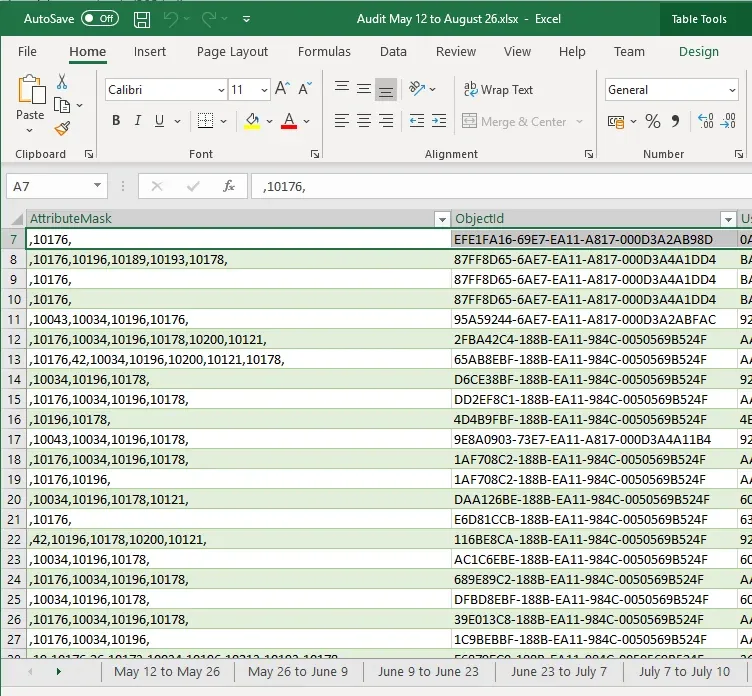
Fig 1: Excel file with the AuditTable data given by Microsoft's support team
Jupyter Notebook
Below you can find a Jupyter Notebook detailing all the steps to transform AuditTable data. Of course, Azure Databricks is another - and maybe better - option to do it, as detailed in this great chronicle from Amaury Veron.
Open the Jupyter notebook in nbviewer
See raw content (if the Jupyter Notebook is not displayed correctly)
Imports
In [1]:
import pandas as pd
import numpy as np
import json
Load Data
We will work with data from the Audit table. For sake of simplicity, the rows from the SQL table have been exported in an Excel file. Also, only a subset of the audit has been exported.
In [2]:
# Load Audit Excel File
audit = pd.concat(pd.read_excel('AuditTableData.xlsx', sheet_name=None), ignore_index=True)

# Set Datetime column
audit.CreatedOn = pd.to_datetime(audit.CreatedOn)
In [3]:
# Print Data
print("Shape: " + str(audit.shape))
audit.head(5)
Shape: (10, 15)Out[3]:
| CallingUserId | UserId | CreatedOn | TransactionId | ChangeData | Action | Operation | ObjectId | AuditId | AttributeMask | ObjectTypeCode | ObjectIdName | UserAdditionalInfo | RegardingObjectId | RegardingObjectIdName | |
|---|---|---|---|---|---|---|---|---|---|---|---|---|---|---|---|
| 0 | NaN | 52C11204-6A97-E611-80EF-005056955350 | 2020-11-05 08:23:42 | BC254F36-401F-EB11-814A-005056953107 | NaN | 1 | 1 | BB254F36-401F-EB11-814A-005056953107 | 65486436-401F-EB11-8140-005056956E2F | ,10647,10059,10529,10106,10088,131,10239,10732... | 2 | NaN | NaN | NaN | NaN |
| 1 | NaN | 52C11204-6A97-E611-80EF-005056955350 | 2020-11-05 08:24:27 | 6E6D4551-401F-EB11-814A-005056953107 | drs_drs_xx_preferences_contact~drs_xx_preferen... | 33 | 2 | BB254F36-401F-EB11-814A-005056953107 | 57554051-401F-EB11-8140-005056956E2F | NaN | 2 | NaN | NaN | NaN | NaN |
| 2 | NaN | 52C11204-6A97-E611-80EF-005056955350 | 2020-11-05 08:25:00 | 081BEC64-401F-EB11-814A-005056953107 | drs_drs_xx_preferences_contact~drs_xx_preferen... | 34 | 2 | BB254F36-401F-EB11-814A-005056953107 | 2401E764-401F-EB11-8140-005056956E2F | NaN | 2 | NaN | NaN | NaN | NaN |
| 3 | NaN | F048EF85-06BC-E811-8106-005056953107 | 2020-11-18 07:36:45 | EB74CDCE-7029-EB11-814C-005056953107 | ~804170001 | 2 | 2 | BB254F36-401F-EB11-814A-005056953107 | A1A9B9CE-7029-EB11-8143-005056956E2F | ,10740,10205, | 2 | NaN | NaN | NaN | NaN |
| 4 | NaN | F048EF85-06BC-E811-8106-005056953107 | 2020-11-18 07:36:52 | EC74CDCE-7029-EB11-814C-005056953107 | ~~804170001 | 2 | 2 | BB254F36-401F-EB11-814A-005056953107 | A2A9B9CE-7029-EB11-8143-005056956E2F | ,10661,10662,10205, | 2 | NaN | NaN | NaN | NaN |
Deal with the AttributeMaskColumn and ChangeData columns
The first thing to do is to work with the AttributeMasCustom and the ChangeData columns. As explaine in Part I, these two columns contain the attributes and old values before the change.
Therefore, we will start by creating a new column on the dataset, a column that will combine a field and its old value.
For the 'Create' event, there is no old value. Therefore the value "OnCreation" will be added
In [4]:
# Remove the first and last comma in the mask column
audit["AttributeMaskCustom"] = audit.AttributeMask.str[1:-1]
In [5]:
# Split the items to have "Field###Value"
audit["A"] = audit["AttributeMaskCustom"].str.split(',').fillna('')
audit["B"] = audit["ChangeData"].str.split('~').fillna(' ')
In [6]:
# will create a new column with: Field###Old_Value!!!Date???
def mergelines(data,i):
    v = ""
    for j in range(i):
        v_1 = data.A[j]
        v_2 = data.B[j] if data.B[0] != " " else "OnCreation"
        v_3 = str(data.CreatedOn)
        v += v_1 + "###"+ v_2 + "!!!" + v_3 + "???"
    return v[:-3]
In [7]:
audit["values_merges"] = audit.apply(lambda x : mergelines(x,len(x.A)),axis=1)Merging line per field and per event
Let's create a new dataframe with only two columns:
The first column will contains the reference to a field, it's old value, and the date and time when the change occured. The second column will contain the GUID of the AuditId, in order to retrieve which changes have been saved together.
248 rows × 4 columns
In [8]:
new_cc = pd.concat([pd.Series(row['AuditId'], row['values_merges'].split('???')) for _, row in audit.iterrows()]).reset_index()
new_cc.columns = ["v","i"]
new_cc
Out[8]:
| v | i | |
|---|---|---|
| 0 | 10647###OnCreation!!!2020-11-05 08:23:42 | 65486436-401F-EB11-8140-005056956E2F |
| 1 | 10059###OnCreation!!!2020-11-05 08:23:42 | 65486436-401F-EB11-8140-005056956E2F |
| 2 | 10529###OnCreation!!!2020-11-05 08:23:42 | 65486436-401F-EB11-8140-005056956E2F |
| 3 | 10106###OnCreation!!!2020-11-05 08:23:42 | 65486436-401F-EB11-8140-005056956E2F |
| 4 | 10088###OnCreation!!!2020-11-05 08:23:42 | 65486436-401F-EB11-8140-005056956E2F |
| ... | ... | ... |
| 243 | 10205###804170001!!!2021-03-25 15:55:12 | 0639DB7A-828D-EB11-8149-005056956E2F |
| 244 | 42###!!!2021-03-31 10:05:11 | 86F7E593-0892-EB11-8149-005056956E2F |
| 245 | 10205###804170001!!!2021-03-31 10:05:11 | 86F7E593-0892-EB11-8149-005056956E2F |
| 246 | 42###danny@gmail.com!!!2021-03-31 10:05:16 | 87F7E593-0892-EB11-8149-005056956E2F |
| 247 | 10205###804170001!!!2021-03-31 10:05:16 | 87F7E593-0892-EB11-8149-005056956E2F |
248 rows × 2 columns
In [9]:
# Now, we can merge back this new information within the entire dataframe
all_data = new_cc.join(audit.set_index('AuditId'), on='i')
For the moment, there are multiple fields per line. Now we make use of the '###' separator to spli each line and have only one field per line.
In [10]:
all_data[['v1','v1_1']] = all_data.v.str.split("###",expand=True,)
all_data[['Old Value','v3']] = all_data.v1_1.str.split("!!!",expand=True,)
As a result we now have a table where for each line there is only one field
In [11]:
all_data[["v1","v3","CreatedOn","Old Value"]]Out[11]:
| v1 | v3 | CreatedOn | Old Value | |
|---|---|---|---|---|
| 0 | 10647 | 2020-11-05 08:23:42 | 2020-11-05 08:23:42 | OnCreation |
| 1 | 10059 | 2020-11-05 08:23:42 | 2020-11-05 08:23:42 | OnCreation |
| 2 | 10529 | 2020-11-05 08:23:42 | 2020-11-05 08:23:42 | OnCreation |
| 3 | 10106 | 2020-11-05 08:23:42 | 2020-11-05 08:23:42 | OnCreation |
| 4 | 10088 | 2020-11-05 08:23:42 | 2020-11-05 08:23:42 | OnCreation |
| ... | ... | ... | ... | ... |
| 243 | 10205 | 2021-03-25 15:55:12 | 2021-03-25 15:55:12 | 804170001 |
| 244 | 42 | 2021-03-31 10:05:11 | 2021-03-31 10:05:11 | |
| 245 | 10205 | 2021-03-31 10:05:11 | 2021-03-31 10:05:11 | 804170001 |
| 246 | 42 | 2021-03-31 10:05:16 | 2021-03-31 10:05:16 | danny@gmail.com |
| 247 | 10205 | 2021-03-31 10:05:16 | 2021-03-31 10:05:16 | 804170001 |
Fields mapping
Inside the AttributeMask column, each integer corresponds to the ColumnNumber metadata property of attributes that have been updated. Those information are stored in the MetadataSchema.Attribute SQL table.
Again, for sake of simplicity here, this data will not be retrieve directly in SQL, but in an Excel file.
SELECT ar.name,ar.ColumnNumber
FROM MetadataSchema.Attribute ar INNER JOIN
  MetadataSchema.Entity en ON ar.EntityId = en.EntityId
WHERE en.ObjectTypeCode=2
In [12]:
contact_attributeMask = pd.read_excel("Contact_AttributeMask.xlsx")
contact_attributeMask.head(10)
Out[12]:
| name | ColumnNumber | |
|---|---|---|
| 0 | accountid | 14 |
| 1 | accountiddsc | 86 |
| 2 | accountidname | 85 |
| 3 | accountidyominame | 219 |
| 4 | accountrolecode | 56 |
| 5 | accountrolecode | 56 |
| 6 | accountrolecodename | 158 |
| 7 | address1_addressid | 89 |
| 8 | address1_addresstypecode | 90 |
| 9 | address1_addresstypecode | 90 |
Now we can map the AttribueMask ColumnNumber to their field's technical names.
In [13]:
attributeMaskeDict = pd.Series(contact_attributeMask.name.values,index=contact_attributeMask.ColumnNumber.apply(str)).to_dict()
all_data["Field"] = all_data.v1.map(attributeMaskeDict)
Add the 'Event' column via 'Action' mapping
Inside the Event column, each integer corresponds to the an unique event. It's an integer representing what kind of action has been performed on the record (e.g: Create, Update, Deactivate, Add Member, ...).
Again, for sake of simplicity here, this data will not be retrieve directly in SQL, but in an Excel file.
SELECT Value as Action, AttributeValue as ActionValue
FROM StringMap
WHERE AttributeName='action' and LangId = '1033'
In [14]:
action_mapping = pd.read_excel("action_mapping.xlsx")
action_mapping.head(10)
Out[14]:
| Action | ActionValue | |
|---|---|---|
| 0 | Unknown | 0 |
| 1 | Create | 1 |
| 2 | Update | 2 |
| 3 | Delete | 3 |
| 4 | Activate | 4 |
| 5 | Deactivate | 5 |
| 6 | Cascade | 11 |
| 7 | Merge | 12 |
| 8 | Assign | 13 |
| 9 | Share | 14 |
In [15]:
actionMaskDict = pd.Series(action_mapping.Action.values,index=action_mapping.ActionValue).to_dict()
all_data["Event"] = all_data.Action.map(actionMaskDict)
Users mapping
Similar to the fields mapping, we can map the name of the user that changed the data.
To change relatively to the Excel file, the data is load via a JSON file that has been retrieved with the Web API via URL /api/data/v8.2/systemusers?$select=fullname,systemuserid
In [16]:
# Opening JSON file
with open('systemusers.json', encoding="utf8") as json_file:
    systemusers = json.load(json_file)
In [17]:
# From the JSON file, create a dictionary GUID -> Fullname
df = pd.DataFrame.from_dict(systemusers['value'])
df.index = df.systemuserid.str.upper()
users = df["fullname"].to_dict()
In [18]:
# Map it to the data
all_data["User"] = all_data.UserId.map(users)
Add current values
As explained in the Part I, a major drawback of the way Dynamics 365 deals with the audit is that it only stored the previous value, but not the new one.
To complete our dataset, we will retrieve via the Web API all fields of a given contact and add it to the AuditTable rows. It will enable us to have the complete history of the audit.
In [19]:
# Opening JSON file
with open('contacts(BB254F36-401F-EB11-814A-005056953107).json', encoding="utf8") as json_file:
    contact = json.load(json_file)
In [20]:
df_contact = pd.DataFrame(contact.items(), columns=['Field','Old Value'])
df_contact["User"] = None
df_contact["Event"] = "CURRENT_VALUE"
df_contact["ObjectId"] = contact['contactid'].upper()
df_contact["CreatedOn"] = pd.Timestamp.today()
In [21]:
all_data = all_data.append(df_contact)OptionSet Mappings
In the AuditTable rows, option set are represented with the value of the option set, not with the name. In the code below we will map each option set value to it's label.
SELECT Value as OptionName, AttributeValue as OptionValue, AttributeName as FieldName
FROM StringMap
WHERE ObjectTypeCode = 1
In [22]:
optionset_mapping = pd.read_excel("Contact_OptionSetsMapping.xlsx")
optionset_mapping.head(10)
Out[22]:
| OptionName | OptionValue | FieldName | |
|---|---|---|---|
| 0 | Analysé, sans autocertification | 3 | drs_statutautocertification |
| 1 | Typologie à clarifier | 804170002 | drs_statutdyn365 |
| 2 | Client existant à clarifier (Typologie) | 7 | drs_contexteprocessdyn365 |
| 3 | Client existant à autocertifier (ADE) | 8 | drs_contexteprocessdyn365 |
| 4 | Changement de circonstance à autocertifier (ADE) | 9 | drs_contexteprocessdyn365 |
| 5 | Non | 0 | drs_technical_isemailsent |
| 6 | Oui | 1 | drs_technical_isemailsent |
| 7 | Non | 0 | drs_technical_isresidencefiscalemailsent |
| 8 | Oui | 1 | drs_technical_isresidencefiscalemailsent |
| 9 | Non | 0 | drs_technical_istaskcreatedafter67days |
In [23]:
# Create an unique value merging the technical name of a field and its option set value.
optionset_mapping['MapValue'] = optionset_mapping.FieldName + "###" + optionset_mapping.OptionValue.astype(str)

# Transform it into a Dictionary
optionSetMaskDict = pd.Series(optionset_mapping.OptionName.values,index=optionset_mapping.MapValue).to_dict()
In [24]:
# Create the same unique value by merging field technical name and its option set value.
all_data['OptionSetMapping'] = all_data.Field.astype(str) + "###" + all_data['Old Value'].astype(str)

# Mapping
all_data["OldValueOptionSetName"] = all_data.OptionSetMapping.map(optionSetMaskDict)
In [25]:
# If the field is an Option Set, display the label into 'Old Value' column
all_data['Old Value'] = np.where(all_data.OldValueOptionSetName.isnull(), all_data['Old Value'], all_data.OldValueOptionSetName)
Final data
After all this transformations, the data looks like:
In [26]:
all_data[["CreatedOn","User","Event","Field","Old Value","ObjectId"]]Out[26]:
| CreatedOn | User | Event | Field | Old Value | ObjectId | |
|---|---|---|---|---|---|---|
| 0 | 2020-11-05 08:23:42.000000 | Lloyd Sebag | Create | dada_webregistration | OnCreation | BB254F36-401F-EB11-814A-005056953107 |
| 1 | 2020-11-05 08:23:42.000000 | Lloyd Sebag | Create | drs_donationaudernierdesvivants | OnCreation | BB254F36-401F-EB11-814A-005056953107 |
| 2 | 2020-11-05 08:23:42.000000 | Lloyd Sebag | Create | drs_nepasanonymiser | OnCreation | BB254F36-401F-EB11-814A-005056953107 |
| 3 | 2020-11-05 08:23:42.000000 | Lloyd Sebag | Create | drs_isepargnecadeau | OnCreation | BB254F36-401F-EB11-814A-005056953107 |
| 4 | 2020-11-05 08:23:42.000000 | Lloyd Sebag | Create | drs_imprimercourrierinitial | OnCreation | BB254F36-401F-EB11-814A-005056953107 |
| ... | ... | ... | ... | ... | ... | ... |
| 617 | 2021-04-05 18:55:11.203439 | None | CURRENT_VALUE | drs_xxcomplment | None | BB254F36-401F-EB11-814A-005056953107 |
| 618 | 2021-04-05 18:55:11.203439 | None | CURRENT_VALUE | drs_dyn365statutcode | None | BB254F36-401F-EB11-814A-005056953107 |
| 619 | 2021-04-05 18:55:11.203439 | None | CURRENT_VALUE | address1_latitude | None | BB254F36-401F-EB11-814A-005056953107 |
| 620 | 2021-04-05 18:55:11.203439 | None | CURRENT_VALUE | drs_dyn365ventescumules | None | BB254F36-401F-EB11-814A-005056953107 |
| 621 | 2021-04-05 18:55:11.203439 | None | CURRENT_VALUE | drs_origin | None | BB254F36-401F-EB11-814A-005056953107 |
870 rows × 6 columns
As you can see, each rows contains the event, the data, the user who performed the action, which field is concerned by the change and the previous field value.
Add Display Name
One final data mapping we can do is to use the display name of every field instead of the technical name.
SELECT ar.name,ar.ColumnNumber,ll.Label
FROM MetadataSchema.Attribute ar INNER JOIN
  MetadataSchema.Entity en ON ar.EntityId = en.EntityId INNER JOIN
  LocalizedLabelView ll    ON ll.ObjectId = ar.AttributeId
WHERE en.ObjectTypeCode=2  and ll.Label != '' and LanguageId = 1036
In [27]:
contact_DisplayName = pd.read_excel("Contact_AttributeMask_WithDisplayName.xlsx")In [28]:
# Mapping
displayNameMaskeDict = pd.Series(contact_DisplayName.Label.values,index=contact_DisplayName.ColumnNumber.apply(str)).to_dict()
all_data["Field Display Name"] = all_data.v1.map(displayNameMaskeDict)
Retrieving the old value
Now that we have all our data ready, we can make the final step : add the 'New Value' column !
In [29]:
# Use only the columns of interest
final_data = all_data[["CreatedOn","User","Event","Field Display Name","Old Value","ObjectId"]].sort_values('CreatedOn',ascending=False)

# Create the 'New Value' columns thanks to the shift method !
final_data["New Value"] = final_data.groupby(['ObjectId','Field Display Name'])['Old Value'].shift()
In [30]:
# Remove the current value rows, since we only use it for the 'New Value' column of last change per field
final_data = final_data[final_data['Event'] != "CURRENT_VALUE"]
In [31]:
final_data.head(5)Out[31]:
| CreatedOn | User | Event | Field Display Name | Old Value | New Value | |
|---|---|---|---|---|---|---|
| 247 | 2021-03-31 10:05:16 | Danny Rodrigues Alves | Update | Statut MEC | Non auto-déclaré | Non auto-déclaré |
| 246 | 2021-03-31 10:05:16 | Danny Rodrigues Alves | Update | Email DadaMail | danny@gmail.com | danny@hotmail.com |
| 245 | 2021-03-31 10:05:11 | Danny Rodrigues Alves | Update | Statut MEC | Non auto-déclaré | Non auto-déclaré |
| 244 | 2021-03-31 10:05:11 | Danny Rodrigues Alves | Update | Email DadaMail | danny@gmail.com | |
| 243 | 2021-03-25 15:55:12 | Danny Rodrigues Alves | Update | Statut MEC | Non auto-déclaré | Non auto-déclaré |
Comments 1
Comments were written on the former site and are kept as an archive.
Paul
We asked Microsoft for an export of our Audit History and they said they no longer provide that.